Posts

Window Server 2012 - SFTP
Image
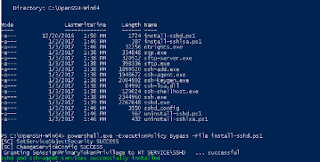
First of all you need to download this application, Openssh Extract the package to C:\openssh powershell.exe -ExecutionPolicy Bypass -File install-sshd.ps1 Generate Server keys by running the following commands from c:\openssh .\ssh-keygen.exe -A Open a port for the SSH server in Windows Firewall: New-NetFirewallRule -Protocol TCP -LocalPort 22 -Direction Inbound -Action Allow -DisplayName SSH To allow a public key authentication, as an Administrator, from C:\openssh, run: powershell.exe -ExecutionPolicy Bypass -File install-sshlsa.ps1  Restart the Server Locate this files  C:\openssh\sshd_config  and change it to  Subsystem sftp C:\openssh\sftp-server.exe Start the service and/or configure automatic start: Go to Control Panel > System and Security > Administrative Tools and open Services. Locate SSHD service. If you want the server to start automatically when your machine is started: Go to Action > Properti...
Forget Window Password

Operating System "IT" Forget Window Password? Download and install  Trinity Rescue Kit

Networking (LAG)

What is LAG? - Provide both load-sharing and port redundancy across line cards. LAGs can be enabled as static or dynamic. LAG addresses 2 problems, Bandwidth limitations and lack of resilience. - Aggregation increase throughout - redundancy provided in case one of the aggregated link fail Dynamic > Static - If one of the link failed between peers, one peer may not see the link as down and continue sending traffic down the link. (Static) - can detect whether the device on the other end can handle link aggregation. LACP Configuration (Dell Switches) - Switch A (conf)# interface ten 0/34 - Switch A (conf-if-te-0/34)# no shutdown - Switch A (conf-if-te-0/34)# port-channel-protocol lacp - Switch A (conf-if-te-0/34-lacp)# port-channel 32 mode active - Switch A (conf-if-te-0/34-lacp)# interface ten 0/43 - Switch A (conf-if-te-0/43)# no shutdown - Switch A (conf-if-te-0/43)#  port-channel-protocol lacp - Switch A (conf-if-te-0/34)# port-channel 32 mode active Check...

Window Server 2012 - DNS

Image
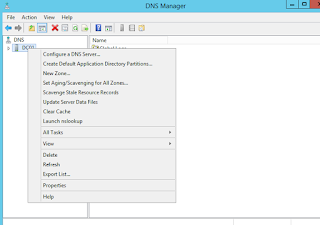
Go to DNS Manager using Tools -> DNS, click on Properties after that.   Forward Lookup zone This type of query expects an IP address as the resource data for the answered response Reverse Lookup zone enabling clients to use a known IP address during a name query and look up a computer name based on its address Can you tell me the DNS name of the computer that uses the IP address 192.168.1.20 DNS Checking

Window Server 2016 - Configuring ADCA

Image
Add Active Directory Certificate Services Add 4 Services, for EAP-TLS deployment that I will be using later. After installing completed, configure certificate services Configure certification Authority & Web Enrollment Enterprise CA Root CA Create new private key Specify the Cryptographic options Summary Once configured the certificate will be ready Connected and successfully authenticated.

Window Server 2016 - Configuring Radius Server

Image
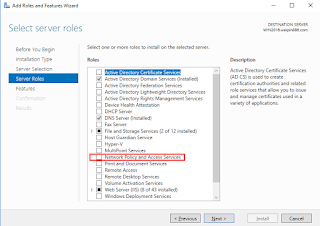
Add Roles and Features Wizard, Network Policy and Access Services Start Installation Manage > Network Policy Server Create New Radius Client Configuring Radius Server for 802.1X Wireless or Wired Connections Configuring profile name, Configure an Authentication Method, choose Microsoft: Protected EAP (PEAP) Leave the Groups column empty and click next until finish. Remember to Register server in Active Directory Click on OK Before proceed to authenticate Wireless Clients using 802.1X, we need to configure Active Directory Certificate Services

Window Server 2016 - AD

This summary is not available. Please click here to view the post.